
ONE MORE MATCH NEEDS A PLAN
Time to play.
A clear time to stop.
Give gaming a defined allowance, a warning before the boundary and a parent-approved path to extra time.
Setting up a child's PC? Start with our Windows gaming-PC parental controls guide. If your child also uses a phone or tablet, explore a shared Windows and Android allowance.
Make the stopping point visible.
Choose a daily allowance, a Gaming category limit or a rule for an individual game. Use scheduled periods to decide when play fits around the rest of the day.
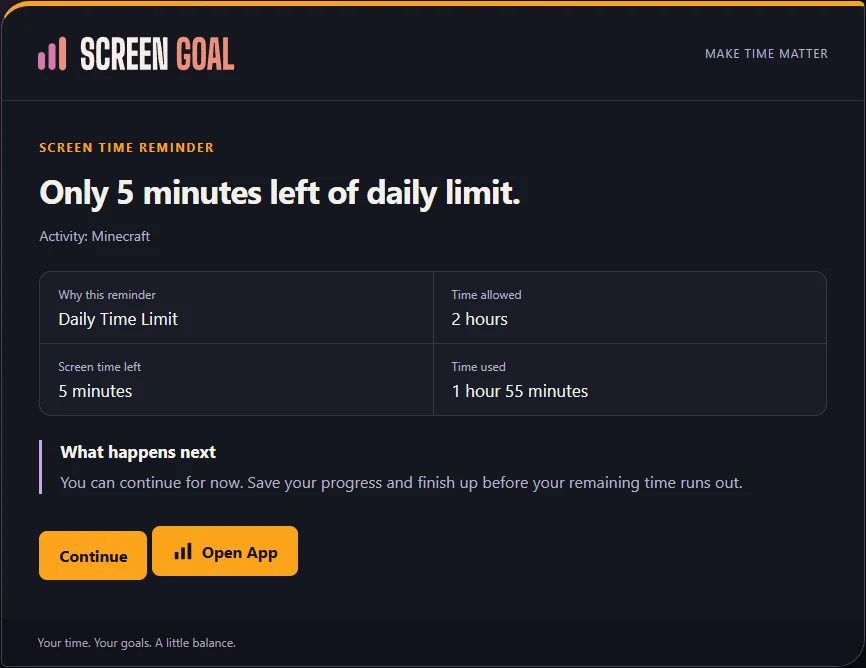
An advance warning gives your child a cue to save, leave a queue or avoid starting another match. Optional timed alerts add a pause after the allowance is used, followed by blocking when the configured warning count is complete.
Screen Goal does not detect the end of every match or guarantee a save point. Check the behavior with the games, display modes and device setup your family uses.
Connect extra play to a clear responsibility.
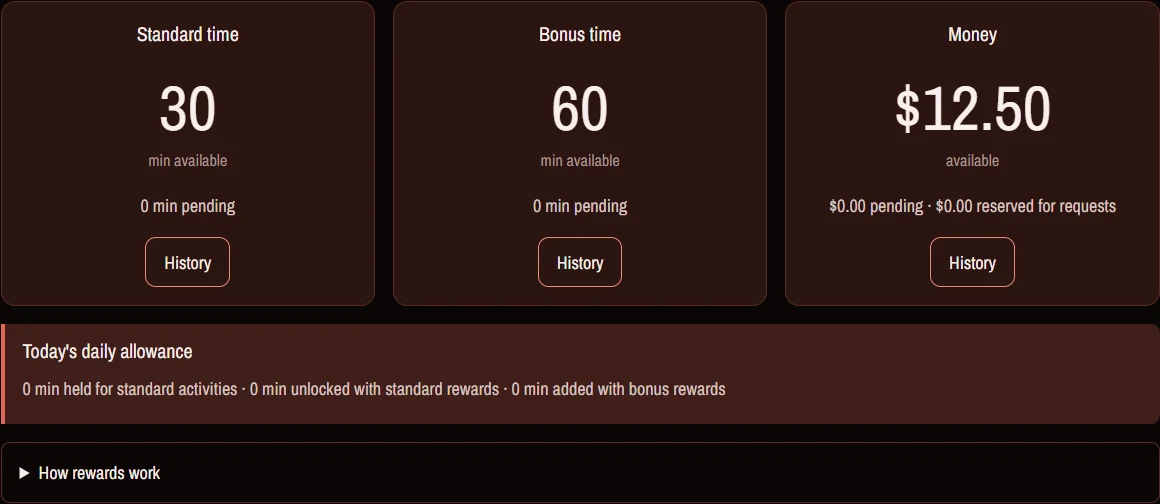
Create a homework, practice or helping-out Activity and attach bonus time. The child submits it, you review it, and the approved reward becomes available to redeem. You can require a fresh camera photo, but the decision is yours; there is no AI photo approval.
For an exception today, use Limits → Bonus Time. Choose any activity, a category or an app, and keep Respect scheduled periods enabled if the normal timetable should still apply. Parent grants expire at midnight in the child's time zone.
A child can also request more time from supported native warning or block screens. The request asks for a decision; it does not automatically grant time.
Understand the boundary you choose.
| Your intention | Choose | Remember |
|---|---|---|
| Limit all leisure time | A daily allowance and relevant category rules. | Choose shared or device-specific scope deliberately. |
| Keep evenings clear | Scheduled periods. | More earned time does not remove a restricted period. |
| Block one app | The app's Blocked state. | Android launch suspension requires a compatible managed installation; ordinary installs use permitted overlays. |
| Make an exception today | A parent Bonus Time grant. | It expires at the child's midnight and does not clear a manual lock. |
What you can use today.
Current Windows and Android apps support linked family devices, activity reports, time rules, Activities and reward balances. Screen Parent provides remote management in a browser.
For gaming-specific setup, start with one game and test the warning and block sequence. Platform restrictions, permissions and protected full-screen software can affect how controls appear. Stronger managed Android protection applies within the managed device or profile.
See current platform availability and questions to ask when choosing a screen-time tool.
A few practical answers.
Can Screen Goal promise the match will finish?
No. Set the warning far enough ahead for a sensible stopping decision. The configured limit remains a boundary.
Is Unlimited the same as Always allowed?
No. Unlimited removes the individual app quota. Daily, category and schedule rules can still apply. Always allowed is a broader exception and should be chosen carefully.
Can I allow one game as a bonus?
A parent grant can target an app or category. That is separate from a redeemed Activity reward, which changes the overall daily allowance. Explicit blocks and manual locks still need their own decision.