
Complete the agreement.
Homework before a bonus gives your child a specific next step. You check it together; your grant confirms the extra time.
Homework’s done.
Can we add my
15 minutes?
Example family conversationCan we add my
15 minutes?

SCREEN TIME, WITH A PLAN
Carefully designed to encourage better habits, and build responsibility and mindfulness in kids. Takes the pain out of transitions off digital. Flexible installation options, with the option for strong security.
Your rules. Their time. One clear picture.
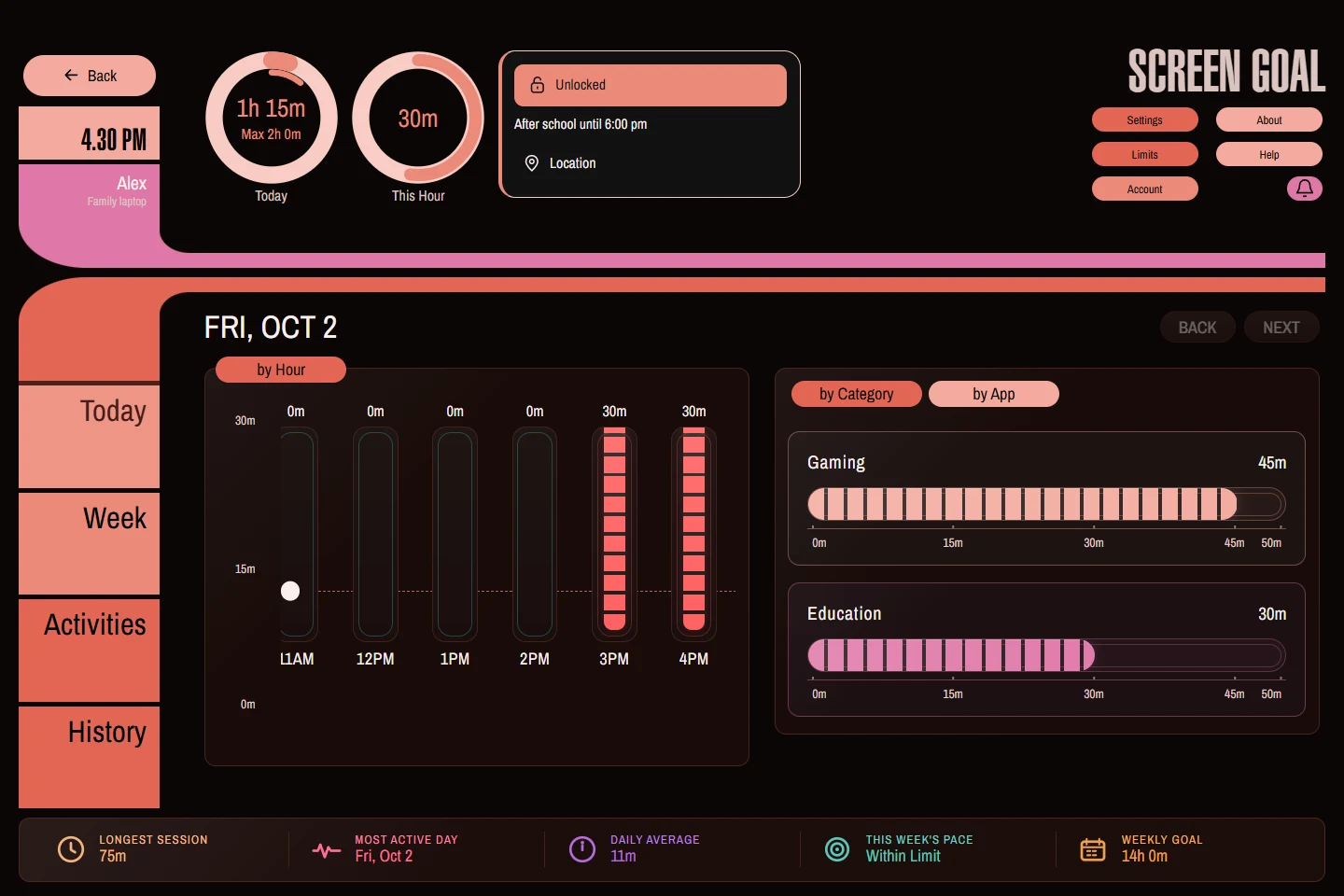

Real application captures with fictional family data. Child warning screens show the Windows experience. Select a capture to view it full size.
THE EVERYDAY ADMIN, HANDLED
Set a daily maximum from the parent dashboard. Check today’s use without adding up every session.
Choose the child and device, then adjust the allowance in Limits → Daily Maximum. Category limits and scheduled periods let you be more specific about what’s available and when.
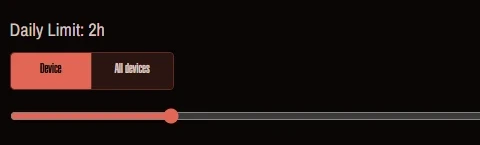
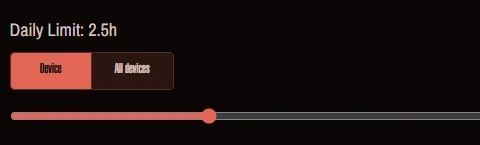
Plans changed? Move the daily limit from two hours to two and a half. The saved maximum updates in the dashboard; linked devices pick up changes as they sync.
A regular allowance change keeps the rest of your settings. For a one-off extra, use Bonus Time.
01.1 / VISIBILITYTime recorded by Screen Goal, shown by hour and category.
01.2 / SCOPEDaily limits for a device or across a child’s devices.
01.3 / FLEXIBILITYRegular limits and today-only bonus grants are separate.
AN AGREEMENT THEY CAN ACT ON
Homework first. Then 15 extra minutes.
A clear agreement, with the parent in charge of the grant.

The parent checks the work before granting time.
HOW THE CONDITION WORKS TODAY
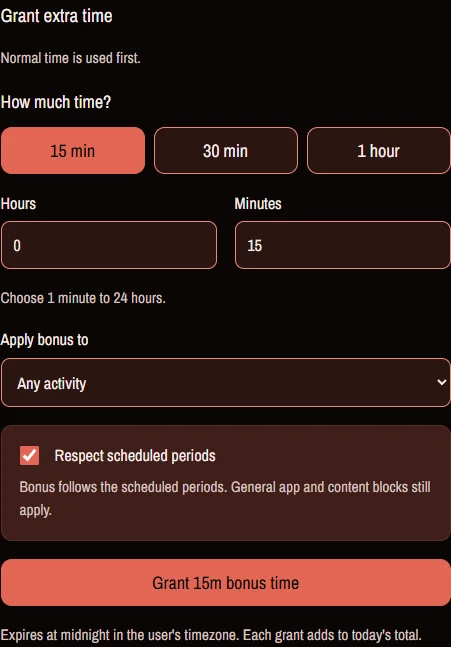
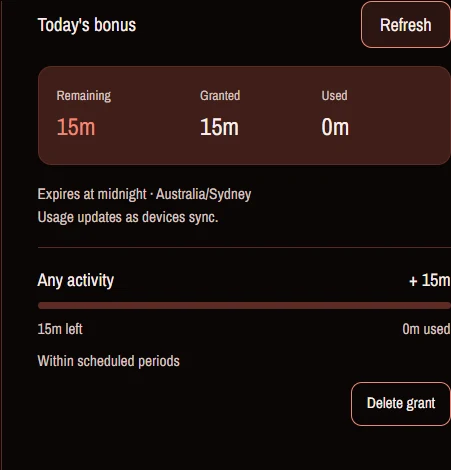
Make 15 extra minutes available after the agreed homework is finished. You agree and check the activity outside Screen Goal, then grant the bonus in the parent interface.
Choose any activity, a category or an app. Bonus time adds to the normal allowance and expires at midnight in the child’s profile timezone.
“Respect scheduled periods” is checked by default. Leave it on to keep bonus time within your period rules. General content blocks still apply, and a bonus does not remove a manual lock.
The current workflow is a manual parent grant. An in-app chore list, completion submission and automatic unlocking are not available in the reviewed product.
SMALL ACTIONS THEY CAN PRACTISE
Something to do. Time to choose.
A signal to start wrapping up.
Homework before a bonus gives your child a specific next step. You check it together; your grant confirms the extra time.
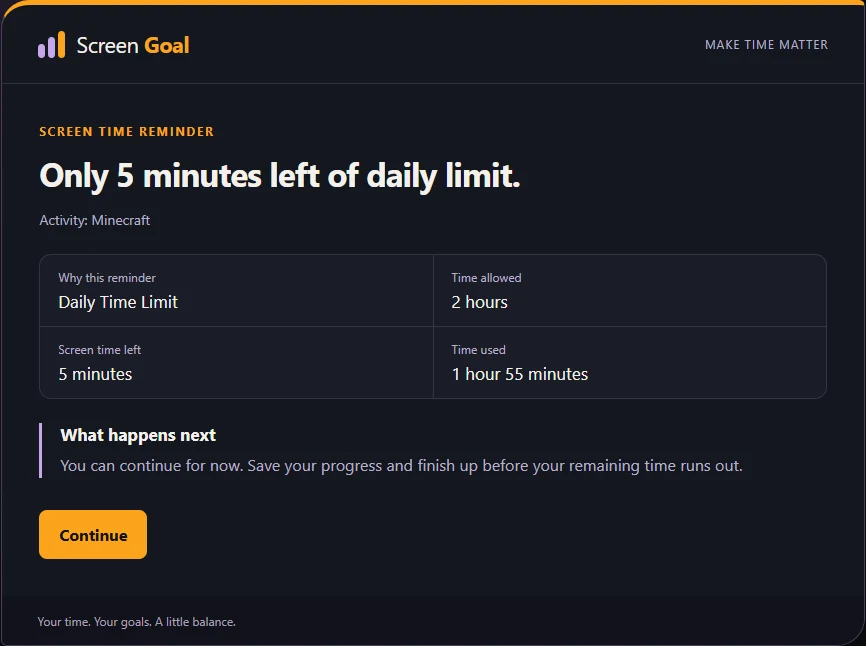
The Windows reminder shows time allowed, time used and time remaining. Five minutes left is a cue to find a stopping point.
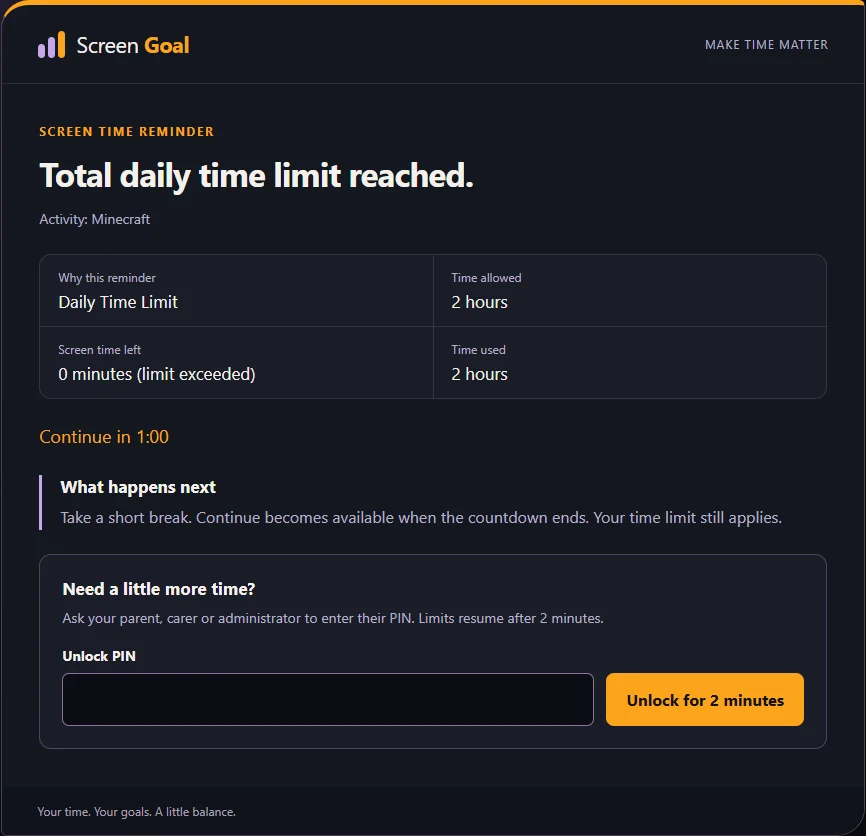
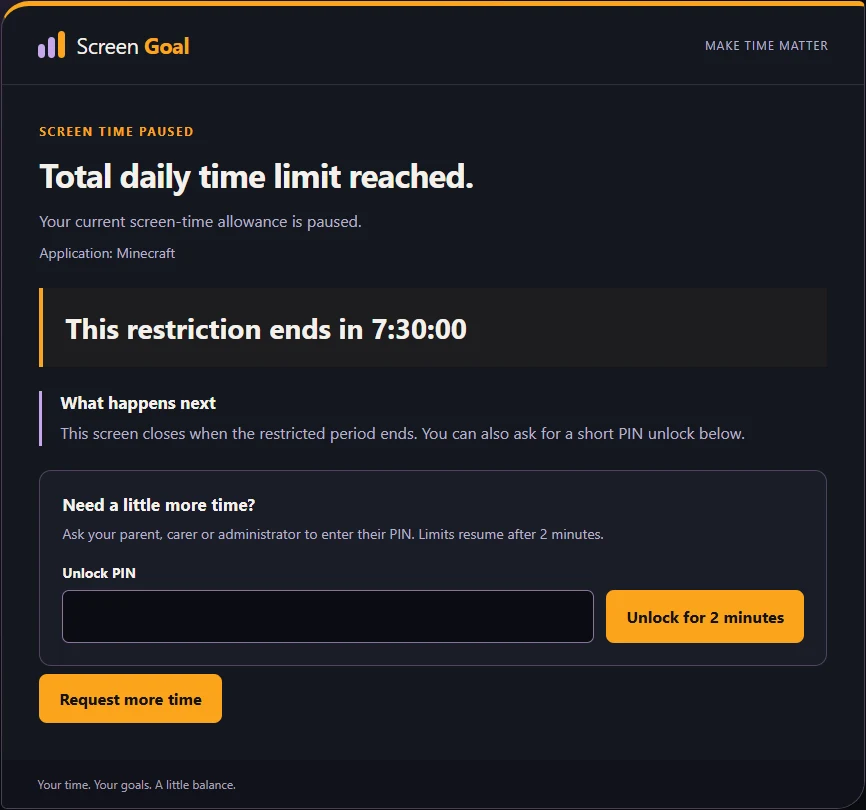
From the Windows pause screen, your child can request more time. A request goes to the parent for review; sending it does not unlock the device.
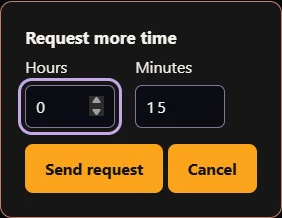
Screen Goal provides cues and choices to practise. Lasting habits still take repetition and family support.
A HEADS-UP. THEN A CLEAR BOUNDARY.
“Only 5 minutes left” gives them a chance to save, pause or find a stopping point before their allowance ends.
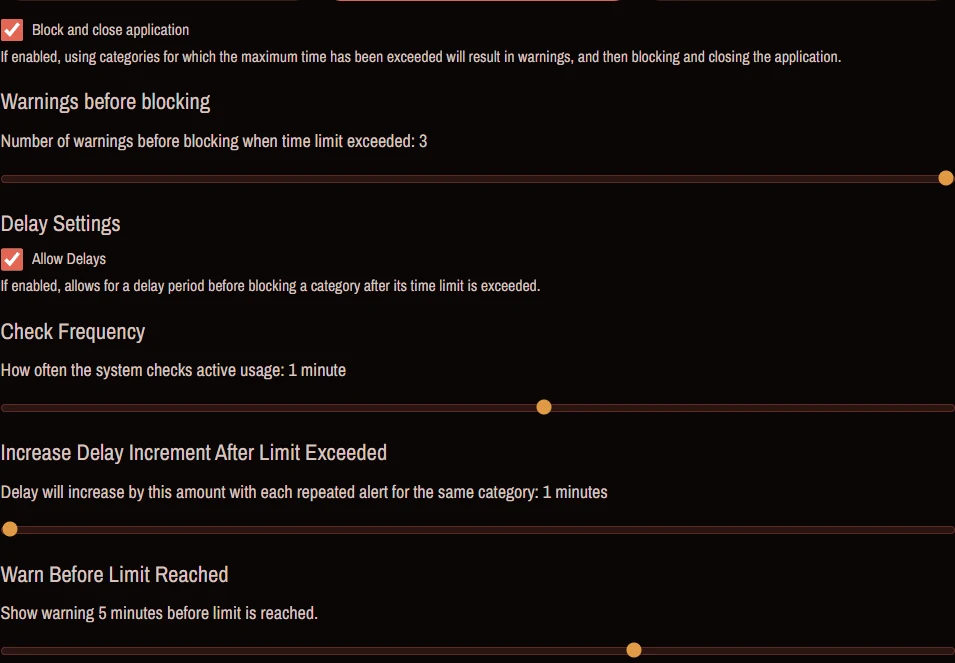
The warning interval is configurable. This Windows example uses a five-minute warning, followed by the enabled delay and blocking settings. Time is compressed for the demonstration.
PUT YOUR FAMILY’S RULES INTO PRACTICE
Daily limits, parent-approved bonus time and a heads-up before the limit — managed from your Screen Goal dashboard.
Get started Already have an account? Sign in